
Whitelisting an email involves telling your email provider that you want emails from that sender to be allowed into your inbox rather than being filtered into spam.
If you’re wondering how to whitelist an email, it can be frustrating not to be able to whitelist email to ensure that it makes it through your inbox filters. Digging through your spam folder to find the emails you need is an annoying process that detracts from everything else on your to-do list.
This article will cover how to whitelist an email in Gmail and other major email service providers – with images!
You’ll need to whitelist our email address to ensure you receive updates from us regarding:
- Regular updates on our campaigns and outreach efforts
- Free resources available for teachers and parents alike
- Essentials emails that provide deeper background and resources to build a strong foundation for drug-prevention at home and in school
- Opportunities to help us craft better materials and content through your direct and honest feedback
Follow These Instructions for Gmail:
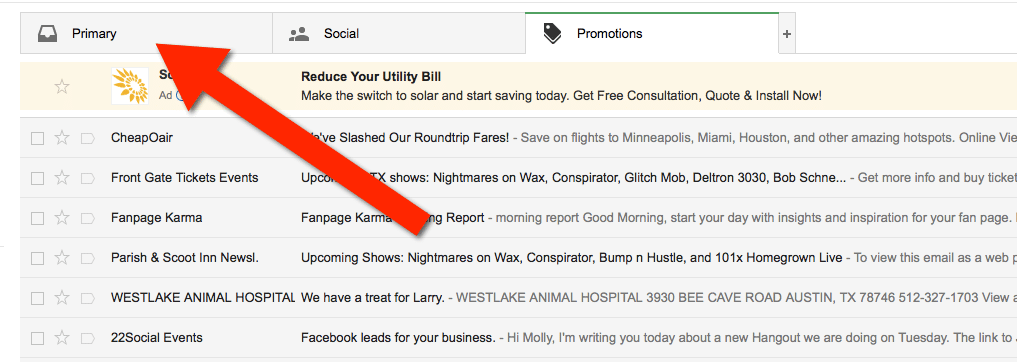
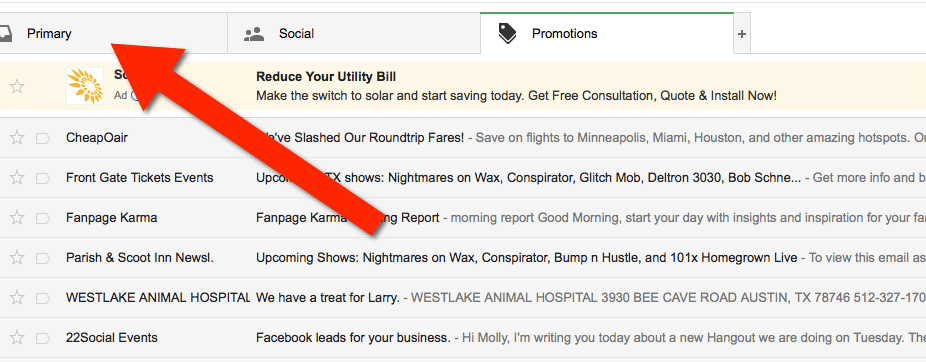
- In your inbox, locate an email from jons@naturalhigh.org (ex. your welcome mail for registering with us).
- Drag this email to the “primary” tab of your inbox.
- You’ll see that our emails will go to your primary folder in the future!
For other email service providers (Yahoo, AOL, etc.) please add us as a contact in your address book.
Read on for a helpful article we’ve included that shows you how to Whitelist Natural High on your phone and other email services.
Apple Mail (OS X and iOS devices)
Apple makes it delightfully easy to whitelist emails. Simply select the From or Reply-to on an email. From there, you can choose Create New Contact or Add to VIP.
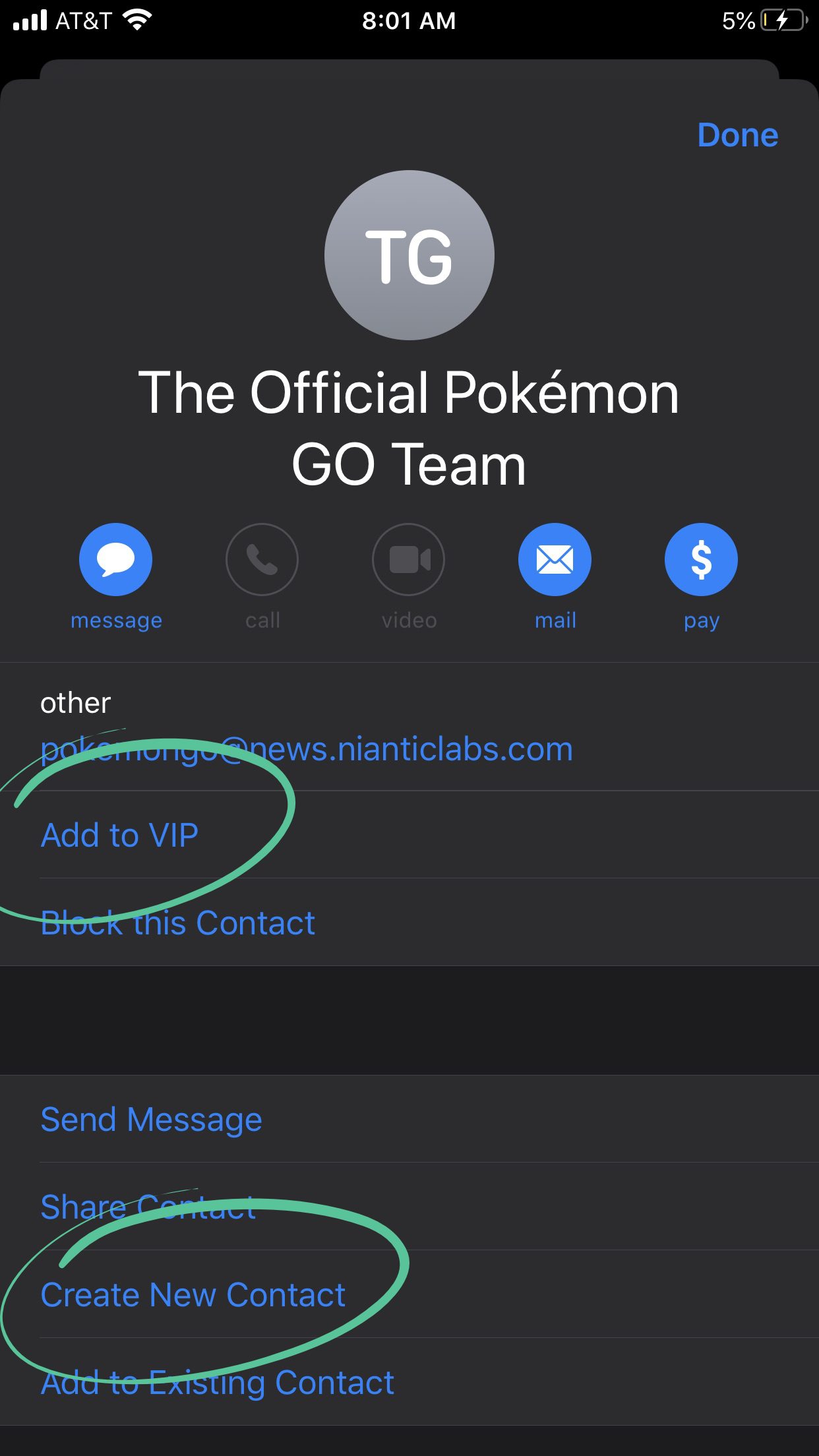
Caution: If subscribers choose Add to VIP, your emails will show up in a special VIP mailbox.
Android (Default Email Client)
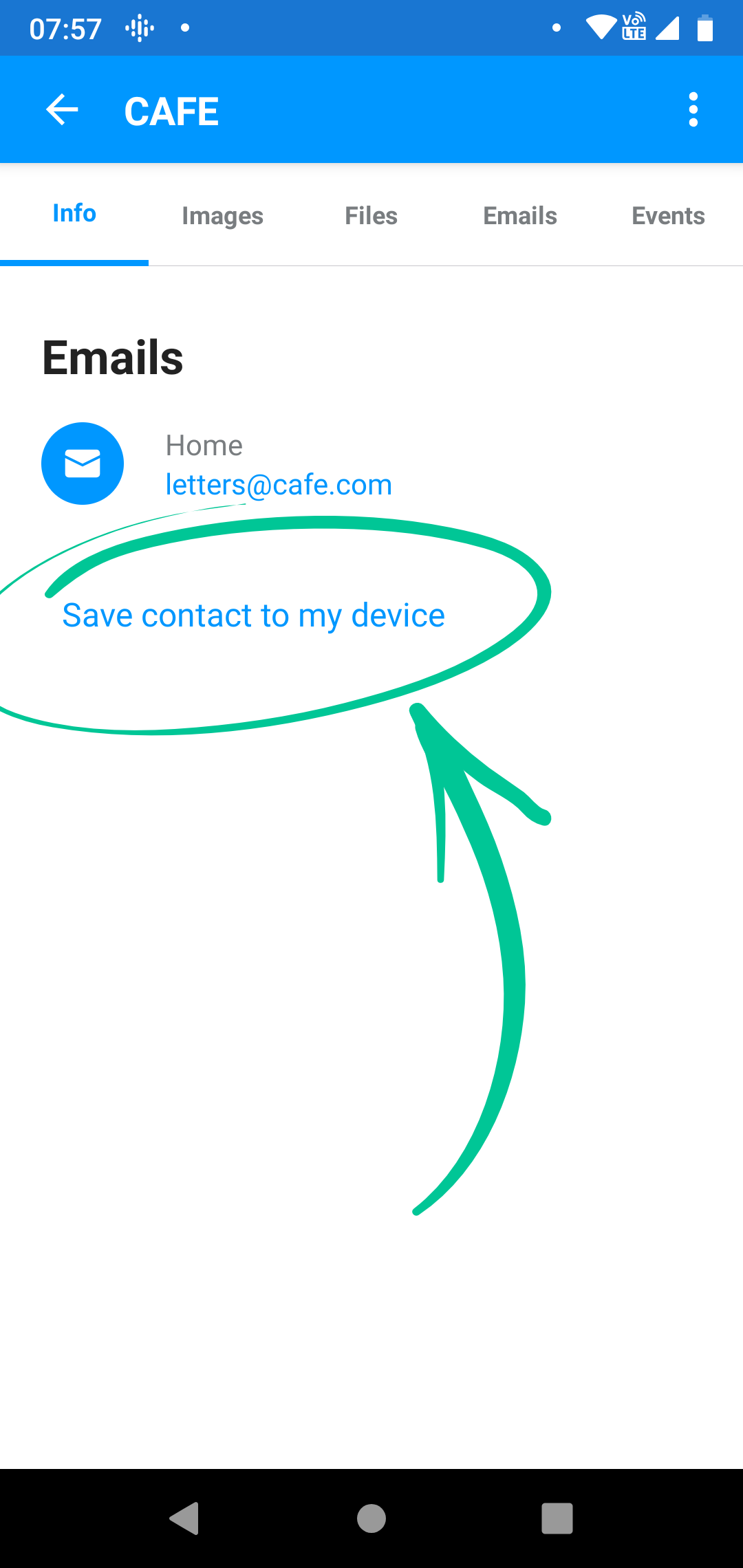
Android’s process is similar to Apple’s. Just open the email message and tap the picture of the email sender that shows up before the message. Then, tap Save contact to my device.
Gmail (Web)
Gmail is by far one of the most popular email clients around and is used by businesses and individuals alike. It’s a bit more involved than the default email clients on iOS and Android devices. To whitelist an email in Gmail, here’s what to do:
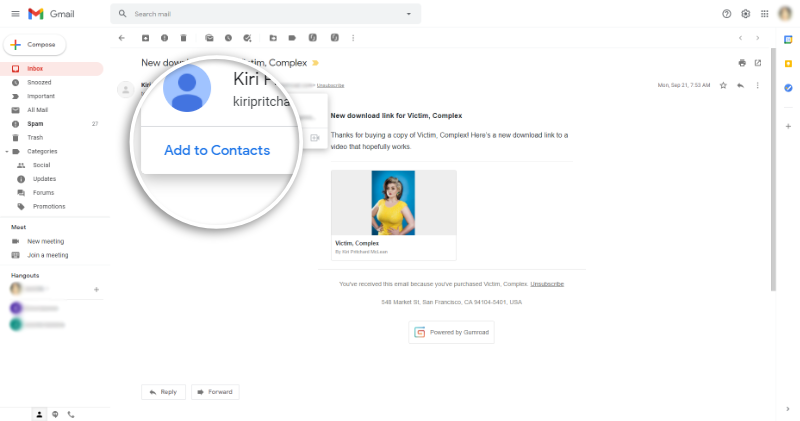
Start by finding an email from a sender you want to whitelist and add that sender to your contact list.
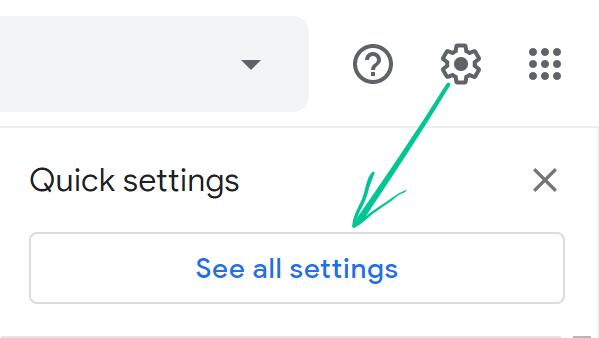
Next, create a custom filter by clicking on the gear icon and selecting Settings.
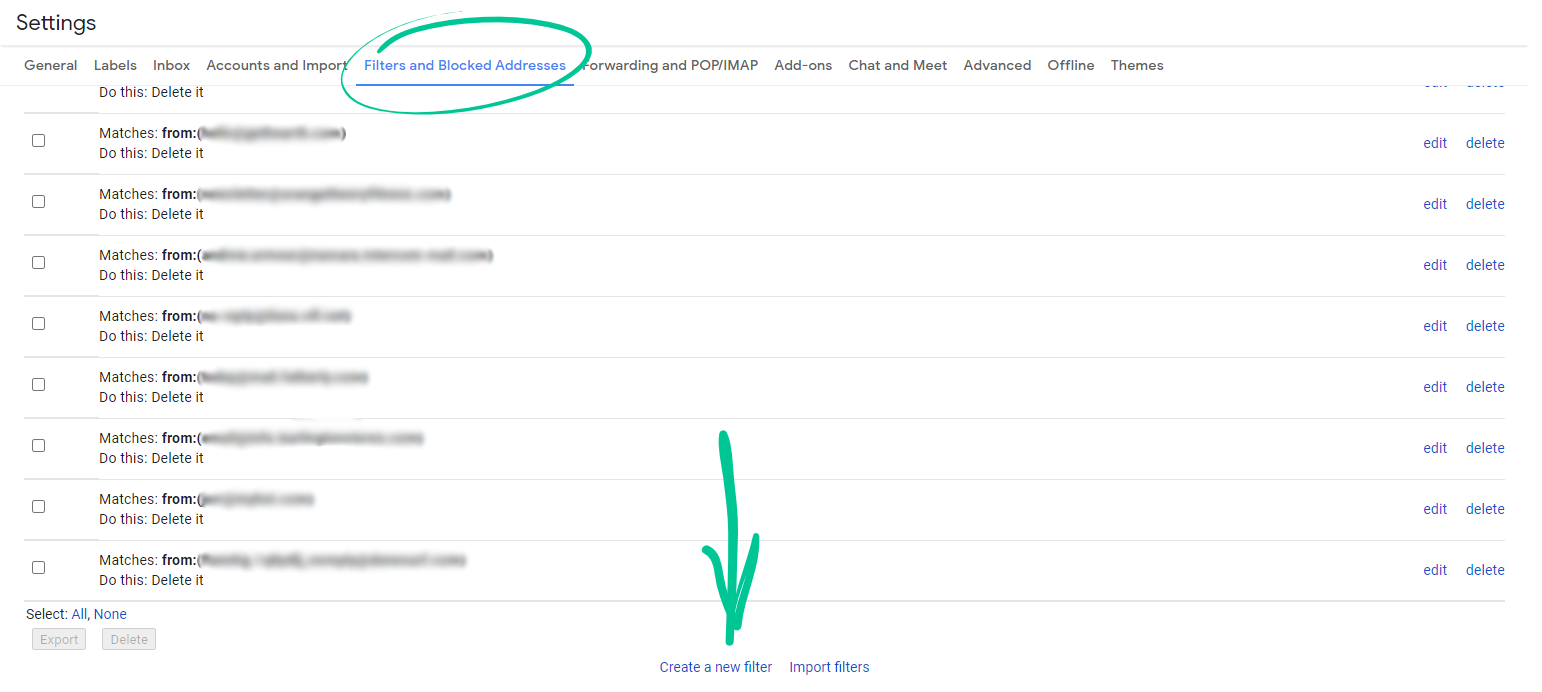
Choose Filters and Blocked Addresses from the menu at the top of the page and click on Create a New Filter.
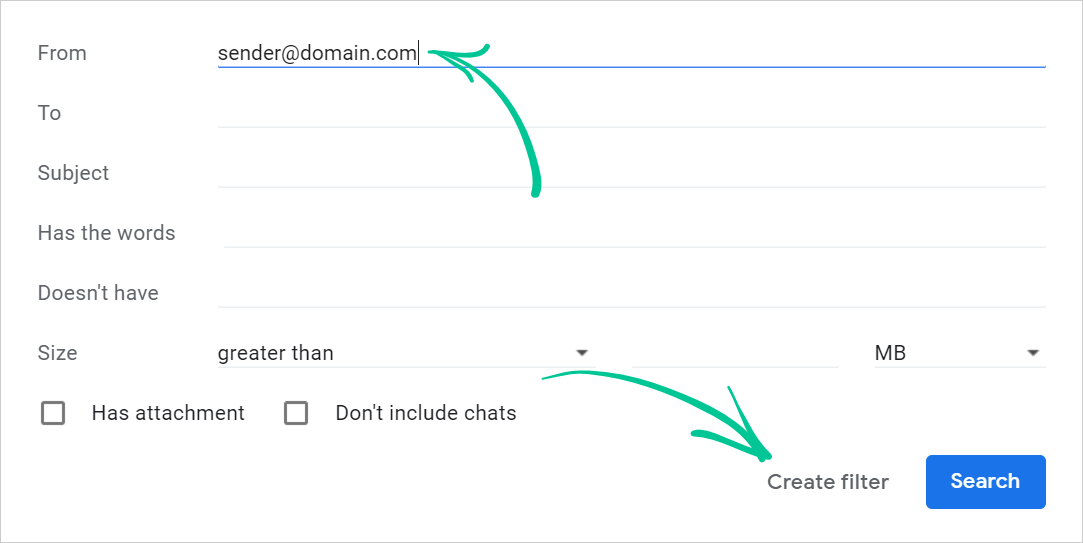
Enter the email address you want to whitelist in the From field and click Create Filter.
Now, check either Never Send It to Spam or Always Mark It as Important and click Create Filter.
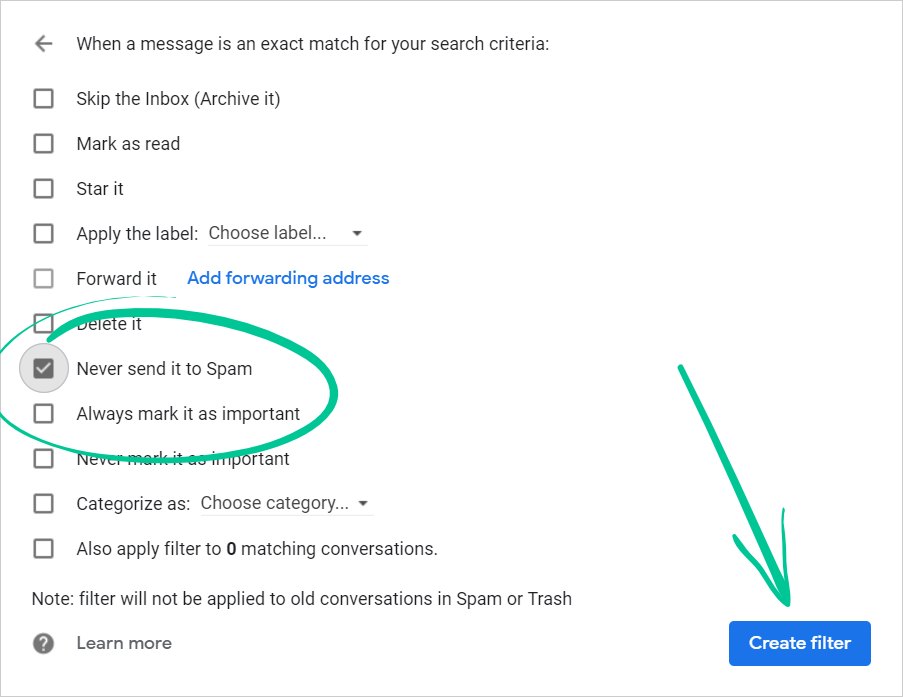
Moving Senders From Social or Promotions to Primary
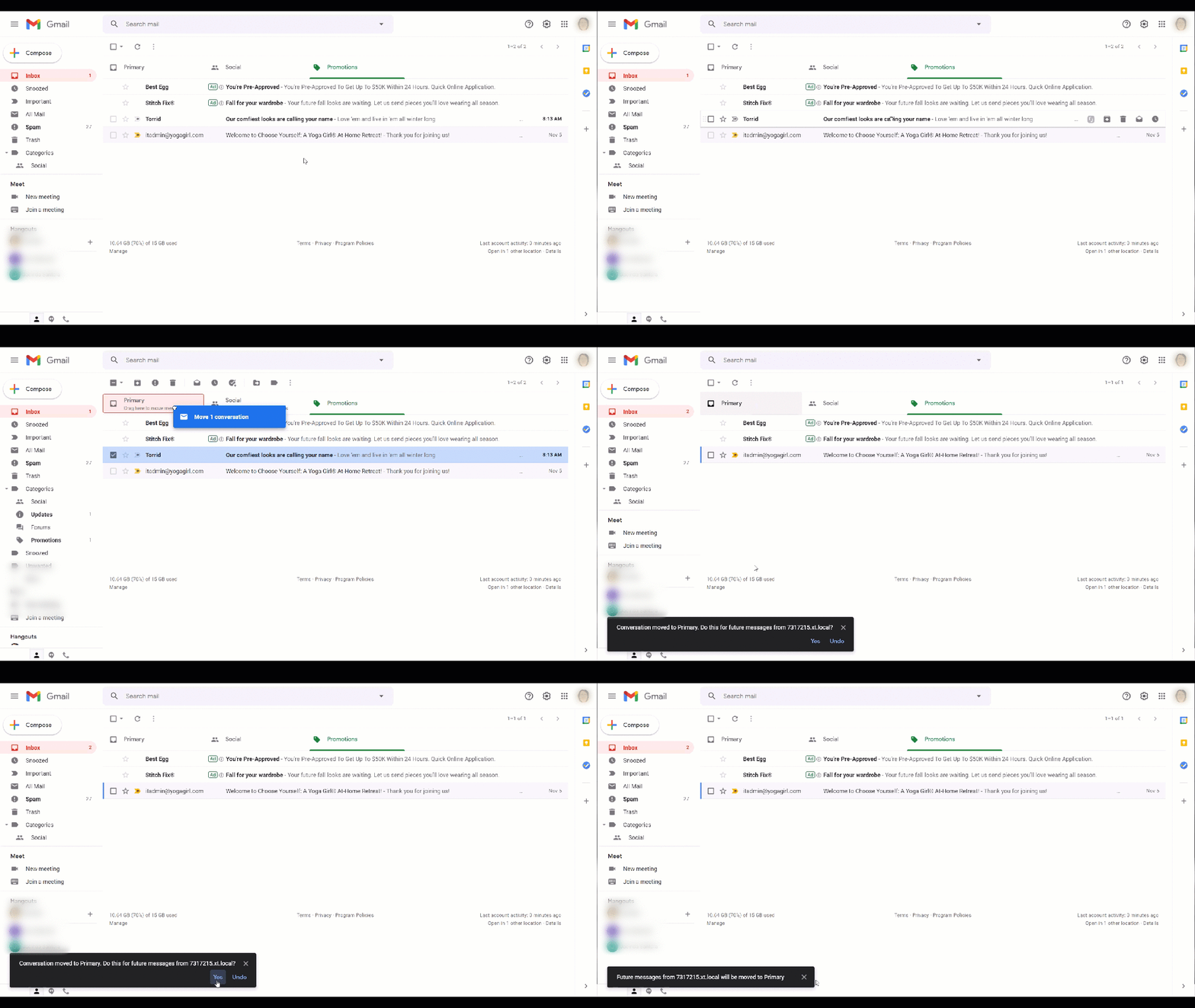
If you get an email in your Social or Promotions tabs and you’d rather those emails come to the Primary tab instead, you can make that change in a couple of steps.
Start by dragging and dropping the email message from the tab where it currently is to the Primary tab. After you’ve done that, you should get a message that asks if you want to do this for all future messages from that sender. Choose Yes.
If you’re using Gmail on your mobile device, there’s isn’t a great way to make this happen.
Apple Mail
Apple Mail email whitelisting, like Gmail, is another involved process. Here’s how to whitelist an email in Apple Mail:
Go to Mail > Preferences and click the Rules tab. Then choose Add Rule.
Fill out the rule as needed. We’ve chosen to write a list rule to move all mail from a specific domain to the inbox:
If [any] of the following conditions are met: [From] [contains] [@domain.com] Perform the following actions: [Move Message} to mailbox: [Inbox]
Click OK to save the rule.
Outlook.com
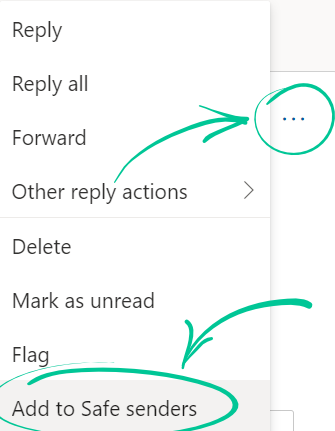
Once you open an email message in Outlook.com, you’ll see three vertical buttons to the far right of the message preview pane. Click those buttons and then click Add to Safe senders.
Outlook 20XX and Outlook 365
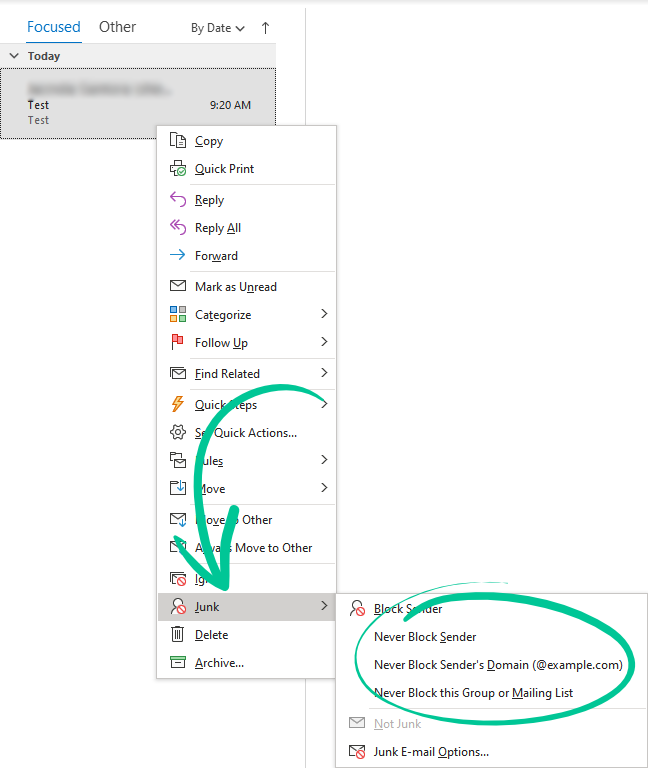
There are two ways to whitelist emails in each version of Outlook. Choose a message from the sender and choose Home > Junk > Never Block Sender or Never Block Sender’s Domain.
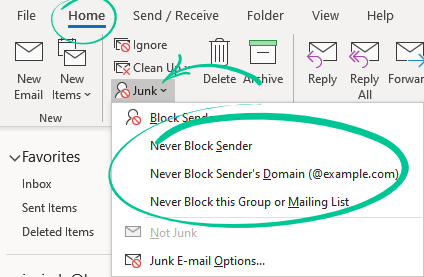
The other option is to choose a message from the sender and right-click. Then choose Junk > Never Block Sender from the dropdown menu.
A dialog box will pop up to let you know that the email address has been added to your safe senders list.
If the email includes images, you’ll be able to choose the Click here to download pictures alert and choose Add Sender to Safe Senders List.
Windows Live Desktop
When opening an email in Windows Live Desktop, you’ll get an alert that says Some images in this message are not shown. Choose Add to Safe Senders list.
Yahoo! Mail
When you open an email in Yahoo! Mail, a plus symbol will appear next to the From information. Click the symbol and you’ll see an Add to contacts popup. Choose Save.
AOL Mail
Choose an email from the sender you want to whitelist, click the sender’s name and choose Add Contact from the dropdown.
Verizon
Open your email. Click Options > Block Senders > Safe List and enter the sender’s domain. Then, click OK.
AT&T WebMail
Choose Options > Filters > Add Filter. Choose contains from the dropdown menu and enter the email address you want to whitelist. At the bottom of the screen, you’ll find an option that says Move the message to and choose inbox from the dropdown menu then choose the Add Filter button again.
MSN
Go to your settings and choose Junk E-mail Guard > Safe List then enter the email address you want to whitelist. Choose Add.
Comcast
Go into your Address Book and click New > New Contact. Enter the email address then click Save.
Cox.net
Open up your email and click Preferences > General Email Preferences > Blocked Senders. Add the email address you want to whitelist in the Exceptions List then click Add and then Save.
Thunderbird
Find an email from the sender you want to whitelist. If it’s in your Junk folder, just right-click on the email and choose Mark As Not Junk. Open your address book and make sure your Personal Address Book is selected. Click New Card and under the Contact tab, add the email to the email dialog box and click OK.
Mail.com
Open the email and click the plus symbol on the sender’s email address. Add a first and last name and then click OK.